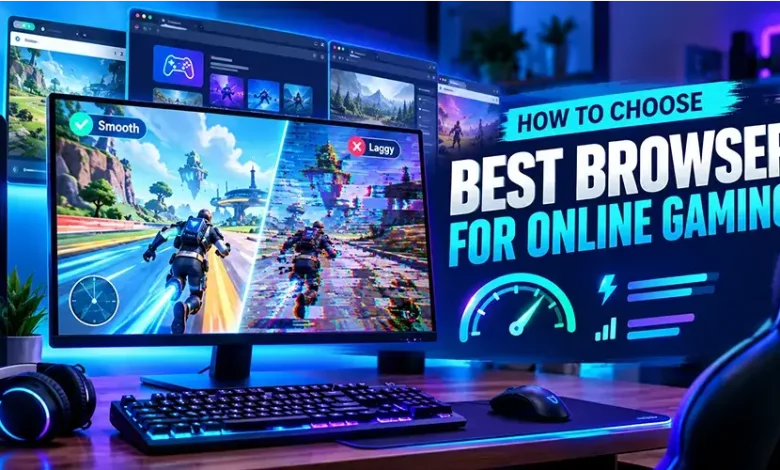
The browser you use can affect how smoothly a browser game loads, responds to your controls, and handles background activity. If a game feels slow, stutters during busy scenes, takes too long to load, or stops responding after several minutes, the problem may not be the game itself. Your browser, extensions, available memory, graphics settings, and other open tabs can all contribute.
There is no single browser that is automatically the best choice for every player. The better approach is to choose a browser that fits the games you play, your computer or phone, and the way you normally use the web. This guide explains the features that matter most so you can make that choice without relying on a generic browser ranking.
Start With the Games You Actually Play
The right browser depends partly on the type of games you use it for. A lightweight puzzle game has very different requirements from a detailed WebGL game with continuous animation, audio, and real-time interaction.
| Gaming situation | What matters most | What to look for |
|---|---|---|
| Simple puzzle and arcade games | Fast loading and compatibility | Reliable page rendering and responsive controls |
| WebGL games | Graphics performance | Hardware acceleration and modern graphics support |
| Long gaming sessions | Resource management | Reasonable memory and CPU usage |
| Gaming with music or video in other tabs | Multitasking | Good tab and memory management |
| Older computers | Efficiency | Low overhead and the ability to limit unnecessary background activity |
| Privacy-conscious gaming | Browser controls | Useful privacy settings without breaking required game content |
Thinking about your normal gaming habits first prevents a common mistake: choosing a browser because it has the longest feature list when you only need reliable performance for a handful of casual games.
The Five Browser Features That Matter Most
1. Graphics and hardware acceleration
Many modern browser games rely on technologies that use the computer’s graphics hardware. When hardware acceleration is working correctly, the browser can use the GPU for suitable graphical tasks instead of handling everything through the CPU.
This is particularly relevant for games with 3D scenes, complex animations, particle effects, or continuously changing graphics. If a browser game looks unusually slow despite your computer being capable of running it, checking whether hardware acceleration is enabled can be a useful troubleshooting step.
There is an important exception: hardware acceleration is not automatically beneficial in every configuration. An outdated graphics driver or a compatibility problem can sometimes cause visual glitches or instability. If enabling it creates a problem, testing the browser’s graphics settings can help identify the cause.
2. Memory management
Browser games compete for system memory with everything else you have open. A game running alongside dozens of tabs, video streams, chat applications, and other demanding web pages may have fewer resources available than expected.
Good memory management is therefore more useful than simply looking for a browser advertised as fast. The practical test is how your browser behaves during the workload you actually use.
If a game becomes slower after you have been playing for a while, close unnecessary tabs and applications first. If the problem disappears, the browser may have been competing for system resources rather than lacking gaming capability.
3. Compatibility with modern web standards
Browser games can depend on features such as JavaScript, WebGL, WebAssembly, audio APIs, and other modern web technologies. A browser should support the technologies required by the games you want to play without needing unusual workarounds.
Compatibility also matters for less obvious elements. Menus, keyboard controls, fullscreen modes, saved progress, sound, advertisements, authentication systems, and game interfaces can all behave differently when a browser blocks or handles web content differently.
4. Stability
A browser that performs well for five minutes but regularly crashes or freezes is not a practical gaming choice. Stability becomes especially important during longer sessions where the browser is handling game graphics, audio, network requests, and multiple open tabs at the same time.
Keep the browser updated through its normal update system and pay attention to whether a problem affects one particular game or many different games. That distinction can help you determine whether the browser is actually responsible.
5. Controls over extensions and background activity
Extensions can be useful, but every additional extension can introduce another variable when troubleshooting browser games. Content blockers, privacy tools, script controls, shopping extensions, and other add-ons can sometimes interfere with a game’s scripts or embedded resources.
You do not necessarily need to remove your extensions. If a game behaves strangely, testing it in a clean browser profile or a private browsing window, where appropriate, can help determine whether an extension is involved.
How to Compare Browsers Without Guessing
Instead of asking which browser is universally fastest, compare browsers using the same game and the same conditions. This produces a more useful result because browser performance can vary depending on the game, hardware, operating system, and number of background applications.
- Choose two or three games you regularly play. Include the type of game that matters most to you rather than relying on a benchmark alone.
- Use the same computer and network connection. Changing several variables at once makes the comparison difficult to interpret.
- Close unnecessary applications and tabs. Give each browser roughly the same starting conditions.
- Load the same game in each browser. Pay attention to loading time, responsiveness, visual glitches, and audio behavior.
- Play for a meaningful period. A short test may not reveal memory or stability issues that appear during longer sessions.
- Check the controls you actually use. Test keyboard input, mouse controls, fullscreen mode, sound, and other important features.
You do not need laboratory-grade measurements to make a practical decision. If one browser consistently handles your favorite games without glitches while another introduces problems, that real-world difference may be more useful to you than a generic benchmark number.
What About Chrome, Edge, Firefox, and Other Browsers?
Popular browsers can all be suitable for browser gaming, but their behavior can differ depending on the system and workload. Instead of assuming that one brand is always the best browser for online gaming, consider the characteristics that matter for your particular setup.
Chromium-based browsers
Many widely used browsers are built on Chromium and therefore share a large part of their underlying web compatibility. This can make them a practical choice for games that are designed and tested around modern Chromium-based environments.
However, Chromium compatibility does not mean every Chromium-based browser will behave identically. Memory policies, built-in features, extensions, privacy controls, and background processes can differ between products.
Firefox
Firefox uses its own browser engine rather than Chromium’s engine. That independence can be useful when you want an alternative environment for testing compatibility or troubleshooting a game that behaves differently between browsers.
As with any browser, the relevant question is whether the games you play work correctly on your particular version and device. Testing your actual games is more informative than choosing based solely on the browser’s reputation.
Specialized and privacy-focused browsers
Some browsers add gaming-oriented tools, aggressive content blocking, privacy controls, or other specialized features. These can be useful, but additional blocking can occasionally prevent a legitimate game resource from loading.
If a game does not work correctly in a privacy-focused configuration, check whether the browser’s protection settings are blocking scripts, storage, media, or another resource that the game requires. You can troubleshoot the specific site rather than permanently weakening your browser’s protections everywhere.
When Your Browser Is Not the Real Problem
Browser performance is only one part of the equation. If an online game is slow, changing browsers immediately may not solve the underlying issue.
- Slow network connection: A browser cannot compensate for unstable or heavily congested internet access.
- Limited system memory: Too many applications running at once can affect game performance regardless of the browser.
- High CPU usage: Background updates, video playback, downloads, and other processes can compete with the game.
- Graphics driver problems: Visual glitches or poor acceleration may originate below the browser level.
- Game-side problems: Server congestion or an issue with the game itself can produce slow responses that look like browser problems.
- Extensions: An extension that modifies page scripts or content may interfere with a game.
A useful troubleshooting habit is to change one variable at a time. If you switch browsers, disable extensions, close applications, and change graphics settings simultaneously, you may fix the problem without learning what caused it.
A Simple Setup for Smoother Browser Gaming
You do not need to turn your browser into a dedicated gaming machine. A few practical habits can reduce avoidable problems.
- Keep your browser reasonably up to date.
- Close tabs that are using substantial CPU or memory while you play.
- Remove extensions you no longer use.
- Keep your graphics drivers updated through the appropriate system or hardware support channel.
- Allow the game to use the browser features it genuinely requires.
- Use hardware acceleration when it improves performance on your system.
- Test a troublesome game in another browser before assuming your hardware is too slow.
- Restart the browser if a long session has developed unusual performance problems.
For older computers, reducing the number of active browser tabs can sometimes make a larger practical difference than switching between two otherwise capable browsers.
Choosing Based on Your Gaming Style
If you mostly play casual games
Prioritize compatibility, quick page loading, stable controls, and straightforward operation. You probably do not need specialized gaming features if your games are lightweight and work reliably in your existing browser.
If you play graphics-heavy browser games
Pay more attention to hardware acceleration, graphics compatibility, CPU usage, and stability during extended sessions. Test the games themselves because graphics performance can vary considerably between applications.
If you have an older PC
Resource usage deserves more attention. Keep the number of open tabs low, minimize background applications, and compare browsers under the same conditions. A browser that feels responsive on a powerful computer may behave differently on an older system.
If you multitask while gaming
Look for a browser that remains responsive when other tabs are active. Memory management becomes especially important if you regularly keep video, music, chat, guides, or other web applications open while playing.
If privacy is a major priority
Look closely at the browser’s privacy controls, but remember that stronger blocking can occasionally affect game functionality. The useful balance is a configuration that protects your browsing without unnecessarily preventing games from loading the resources they need.
Common Mistakes When Choosing a Gaming Browser
Choosing based only on benchmark results
Benchmarks can provide useful technical information, but they do not reproduce every game or every computer configuration. A small benchmark difference may matter less than whether your favorite game loads correctly and remains stable.
Installing too many gaming extensions
Extra tools can make a browser look more gaming-focused, but they also add complexity. Install extensions because they solve a problem you actually have, not simply because they are marketed toward gamers.
Keeping dozens of tabs open
Having a large collection of tabs open is convenient, but inactive pages can still consume resources. If your computer is struggling, reducing background workload is one of the easiest things to test.
Blaming the browser for every connection problem
Network latency and connection instability are separate from browser rendering performance. If a game connects slowly or repeatedly loses its connection, test your network before replacing the browser.
Changing several settings at once
Randomly changing privacy settings, graphics options, extensions, and browser flags can make troubleshooting harder. Start with normal browser settings and make one controlled change at a time.
Quick Checklist Before You Pick a Browser
Use this checklist when deciding whether your current browser is suitable for browser gaming:
- Does it run the games you want to play without compatibility errors?
- Does keyboard and mouse input respond consistently?
- Does hardware acceleration work properly on your system?
- Does the browser remain stable during longer sessions?
- Can your computer handle the number of tabs you normally keep open?
- Do your extensions interfere with games?
- Are privacy protections preventing required game resources from loading?
- Does the browser perform well on your actual computer rather than only in a benchmark?
If you can answer these questions confidently, you have enough information to make a practical browser choice without chasing a universal ranking.
Frequently Asked Questions
What is the best browser for online gaming?
There is no single browser that is best for every game, computer, and player. The most suitable choice is the browser that provides reliable compatibility, responsive performance, stable graphics, and acceptable resource usage on your particular setup.
Does changing browsers make browser games faster?
It can, but it is not guaranteed. If your current browser has a compatibility problem, excessive background activity, or an extension that interferes with a game, another browser may improve the experience. If the real problem is your network or hardware, switching browsers may have little effect.
Should hardware acceleration be enabled for browser games?
It is generally useful for games that rely heavily on graphics processing, provided it works correctly with your hardware and drivers. If enabling it causes crashes, visual glitches, or other problems, testing the browser with the setting changed can help identify a graphics-related issue.
Can browser extensions affect gaming performance?
Yes. Extensions can consume resources or modify page content and scripts. If a game suddenly becomes slow or stops working, testing it with extensions disabled can help determine whether an add-on is responsible.
Is a gaming-focused browser necessary for playing browser games?
No. A mainstream browser can be perfectly suitable for browser gaming. Specialized features may be convenient for some players, but compatibility, stability, resource usage, and the performance of your actual games are more important than the browser’s gaming label.
Final Thoughts
Choosing the best browser for online gaming is less about finding a universal winner and more about matching the browser to your games, hardware, and browsing habits. Start with compatibility and stability, then consider graphics acceleration, memory management, extensions, privacy controls, and multitasking.
Most importantly, test the browser with the games you actually play. A simple real-world comparison can tell you far more about the right choice for your setup than a generic recommendation.