How to Make Browser Games Run Smoother: Practical Performance Fixes

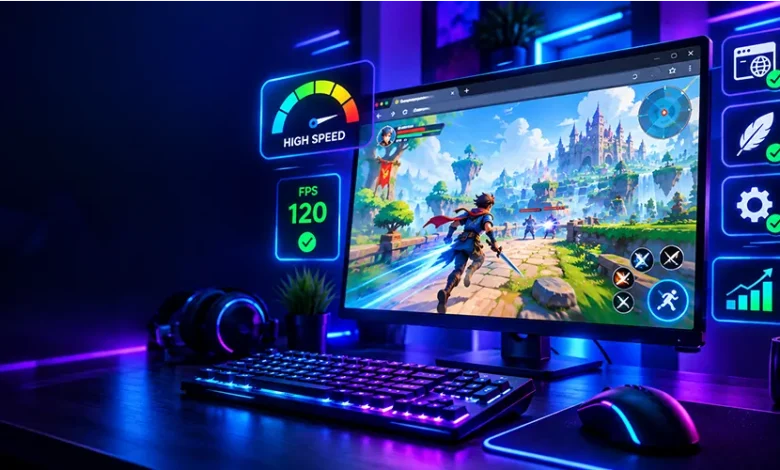
A browser game can feel slow for reasons that have nothing to do with the game itself. A crowded browser, too many background applications, an overloaded graphics setting, weak Wi-Fi, or a browser tab consuming excessive memory can all turn a normally responsive game into a frustrating experience.
If you want to make browser games run smoother, the best approach is to identify where the slowdown is coming from before changing everything at once. The practical fixes below start with simple adjustments and move toward more specific troubleshooting, so you can improve performance without installing unnecessary software.
Start by Identifying What Kind of Lag You Have
Not all browser-game lag has the same cause. A game that displays jerky animation is experiencing a different problem from one where your character responds several seconds after you press a key.
| What you notice | Possible cause | First thing to try |
|---|---|---|
| Choppy animation | Low frame rate or high system load | Close demanding applications and reduce game quality |
| Delayed controls | System load, browser issues, or input latency | Close unnecessary tabs and applications |
| Players or objects teleporting | Network instability | Check your connection and stop large downloads |
| Game freezes briefly | Memory pressure or background activity | Close unused tabs and restart the browser |
| Slow loading | Connection, cache, server, or browser issue | Reload the page and test another site or connection |
This distinction matters because lowering graphics settings will not fix an unstable internet connection, while switching networks will not necessarily solve a computer that is running out of available memory.
Close Browser Tabs You Are Not Using
One of the easiest ways to improve browser gaming performance is to reduce unnecessary activity in the browser. Video sites, web applications, social feeds, online editors, and other demanding pages can continue using memory and processing resources while your game is open.
Before launching a demanding browser game, close tabs you do not need. You do not necessarily have to close every tab, but removing resource-heavy pages can give the game more room to operate.
- Close videos and live streams that are playing in other tabs.
- Remove unused web applications and editors.
- Pause browser downloads that are consuming bandwidth.
- Close duplicate game tabs.
- Restart the browser if it has been open for a long time and performance has gradually deteriorated.
If performance improves immediately after doing this, the browser environment was probably contributing to the problem.
Reduce the Game’s Graphics Load
Many browser games offer graphics, quality, resolution, effects, or animation settings. If those options are available, reducing them can decrease the amount of work your computer has to perform for each frame.
Start with the settings that have the largest visual impact. Lowering resolution, disabling advanced effects, reducing shadows, or selecting a lower quality preset can make a noticeable difference on older hardware.
You do not always need to choose the lowest possible setting. Try one adjustment at a time and stop when the game becomes consistently responsive while still looking comfortable to play.
When lower graphics settings help most
Graphics adjustments are particularly useful when the game becomes choppy during visually busy scenes. If performance remains poor even when the graphics are reduced substantially, the bottleneck may be elsewhere, such as memory usage, CPU load, browser compatibility, or network performance.
Give the Browser a Cleaner Environment
Browser extensions can be useful, but each active extension adds another layer of browser activity. Most extensions will not noticeably affect a simple game, yet troubleshooting performance is easier when unnecessary extensions are temporarily disabled.
If a game suddenly performs poorly after installing or updating an extension, test the page with that extension disabled. A private browsing window can also be useful for troubleshooting because it provides a relatively clean browser session, although exact behavior varies by browser and its settings.
Avoid installing random “game booster” extensions simply because they promise higher FPS. An extension that claims to improve performance may itself consume resources or introduce additional browser activity.
Check Your Computer’s Resource Usage
If the game is still slow, look beyond the browser. Your computer may already be busy with other programs.
Open your operating system’s task or process manager and look for applications using unusually high CPU, memory, or graphics resources. A game may struggle simply because another application is consuming most of the available resources.
- Close applications you are not currently using.
- Pause unnecessary file transfers or demanding background tasks.
- Check whether another program is heavily using the CPU.
- Look for unusually high memory usage when the game begins to freeze.
- Restart the computer if resource usage remains unusually high after closing applications.
Be careful when ending processes. Close applications you recognize rather than terminating unfamiliar system processes just to free a small amount of memory.
Make Sure the Browser Is Up to Date
Browser games depend on modern web technologies, including JavaScript, graphics APIs, audio systems, and browser rendering features. Keeping your browser updated can help maintain compatibility with newer games and websites.
If only one particular game has a problem, test the same game in another current browser. This can help determine whether the issue is specific to your normal browser environment rather than the computer itself.
Testing another browser should be treated as a diagnostic step, not as a requirement to permanently switch browsers.
Don’t Confuse Internet Lag With Low FPS
Network lag and graphical performance problems can look similar when you are playing. The difference becomes clearer once you watch how the game behaves.
If animations remain smooth but other players suddenly move, actions arrive late, or the game repeatedly disconnects, the connection is a more likely suspect. If the entire screen becomes visibly jerky even when the game does not involve online opponents, local rendering performance is more likely to be involved.
For connection-related problems
- Stop unnecessary downloads and uploads.
- Pause cloud synchronization if it is using significant bandwidth.
- Move closer to your wireless router when the signal is weak.
- If possible, compare the experience on another stable connection.
- Check whether other devices are heavily using the same network.
A faster internet plan is not automatically the solution to every browser-game problem. A computer struggling to render frames will remain slow even with an excellent connection.
Try a Fresh Game Session
Sometimes the simplest troubleshooting step is to close the game tab and open it again. A fresh session can clear temporary browser activity associated with the page and may resolve a one-off slowdown.
If that does not help, restart the browser. For persistent problems, restarting the computer can also eliminate temporary resource issues that are difficult to identify individually.
If the game works normally after restarting but gradually becomes slower during a long session, pay attention to how many tabs and applications are open. That pattern can provide a useful clue about memory or resource usage.
Be Careful With Browser Cache Troubleshooting
Clearing cached data is sometimes suggested as a universal performance fix, but it should not be your first response to every slow game. Cached resources can allow websites to load more efficiently, and deleting them does not automatically increase frame rate.
Cache clearing can make sense when a specific game behaves strangely after an update, repeatedly loads damaged or outdated resources, or has persistent loading problems. If you use this approach, remember that clearing other types of browser data may also affect saved website preferences or sessions depending on the browser and the options you select.
Use This Quick Troubleshooting Order
When you want a fast way to work through the problem, use the following sequence rather than changing ten settings simultaneously.
- Close unnecessary tabs and demanding applications.
- Stop background downloads and bandwidth-heavy activity.
- Restart the game tab.
- Reduce graphics quality or visual effects if the game provides those controls.
- Check CPU, memory, and graphics usage.
- Update the browser if an update is available.
- Test the game in another current browser.
- Compare your connection if the symptoms appear network-related.
- Restart the browser or computer if the problem persists.
Changing one or two things at a time makes troubleshooting much easier. If you change everything simultaneously and the game improves, you will not know which adjustment actually solved the problem.
Common Mistakes That Can Make Troubleshooting Harder
Installing unnecessary performance software
Be skeptical of utilities that promise dramatic improvements without explaining what they actually change. For a browser game, basic browser, operating-system, graphics, and network troubleshooting is usually a better starting point.
Blaming the internet for every type of lag
A slow connection can cause delayed online actions, but it does not explain every case of choppy animation. Check whether the visual frame rate or the network response is actually the problem.
Lowering every setting immediately
Extreme graphics reductions can make a game look unnecessarily poor when a single resource-heavy application was the real problem. Start with modest changes and evaluate the result.
Keeping dozens of demanding tabs open
A modern computer can handle many ordinary tabs, but media-heavy pages and web applications can consume considerably more resources. Browser gaming is a good reason to keep the active session relatively clean.
When the Problem May Be the Game or Website
Not every performance problem can be fixed locally. If a particular game is slow while other browser games work normally on the same computer and connection, the issue may be related to that game’s implementation, current server conditions, browser compatibility, or a temporary website problem.
Look for a pattern before making major changes. If several games slow down at the same time, investigate your browser, computer, or connection. If one game consistently behaves differently, testing it on another browser or device can help separate a game-specific issue from a general performance problem.
How to Keep Browser Games Smooth Over Time
You do not need to constantly optimize your computer before every casual gaming session. A few sensible habits can prevent many avoidable problems.
- Keep your browser and operating system reasonably current.
- Close applications that are not needed for gaming.
- Avoid unnecessary background downloads while playing online games.
- Keep browser extensions under control.
- Use sensible graphics settings for your hardware.
- Restart the browser when a long session begins behaving unusually.
- Pay attention to whether a problem is graphical, system-related, or network-related.
The goal is not to make your computer use the fewest possible resources. It is to give the game enough consistent resources to remain responsive without sacrificing the normal features you actually need.
Frequently Asked Questions
Why are browser games suddenly running slowly?
A sudden slowdown can come from additional browser tabs, background applications, downloads, memory pressure, browser changes, or a temporary issue with the game itself. Start by closing unnecessary activity and restarting the game.
Does clearing browser cache increase FPS?
Not normally. Cache clearing can help with certain loading or compatibility problems, but it is not a general method for increasing frame rate.
Can a slow internet connection reduce browser-game performance?
Yes, particularly for games that depend heavily on real-time network communication. Network problems usually appear as delayed actions, disconnections, or other players moving unpredictably rather than simply producing consistently choppy local animation.
Should I lower graphics settings if a browser game lags?
It is worth trying when the game has visible frame-rate problems. Reduce demanding effects or quality settings gradually and check whether responsiveness improves.
Can browser extensions affect gaming performance?
They can contribute to browser resource usage in some situations. If you suspect an extension, temporarily disabling unnecessary ones or testing the game in a clean browser session can help identify the cause.
What should I do if only one browser game is slow?
Test that game in another current browser and compare it with other games on the same device. If the problem is isolated to one title, the issue may be specific to that game or website rather than your entire system.
Final Thoughts
The most effective way to make browser games run smoother is to diagnose the actual source of the slowdown instead of applying random “boost” tools. Start with simple changes such as closing demanding tabs, reducing unnecessary background activity, checking system resources, and adjusting graphics when appropriate.
If those steps do not work, compare browsers and connections to narrow down the cause. Once you know whether the problem is rendering, system load, browser-related, or network-related, the right solution becomes much easier to find.