How to Fix Common Browser Game Problems: A Practical Troubleshooting Guide

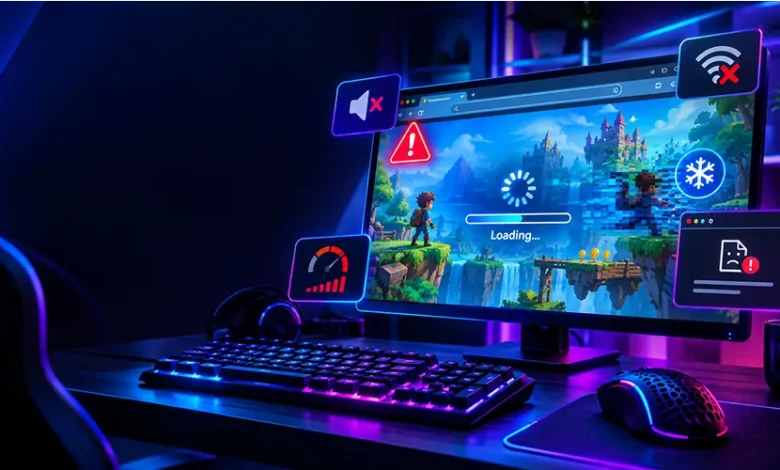
A browser game can stop working for a surprisingly simple reason. A game may remain stuck on a loading screen, run with noticeable lag, lose its sound, ignore keyboard input, crash after a few minutes, or display incorrectly on the page. The good news is that many browser game problems can be fixed without installing complicated software or changing advanced computer settings.
This guide focuses on practical troubleshooting. Instead of treating every problem as the same, you can identify the symptom first and then try the fixes most relevant to it. The same approach works across many casual, arcade, puzzle, action, and strategy games that run directly in a modern web browser.
Start With the Symptom, Not the Solution
Before changing anything, identify exactly what is going wrong. A game that loads but feels slow needs a different solution from one that never appears at all.
- Game will not load: Check the connection, browser settings, page errors, and whether the problem affects other games.
- Game is lagging: Look at browser workload, background applications, graphics settings, and connection quality.
- Game keeps freezing or crashing: Check memory usage, browser updates, extensions, and whether another tab is causing instability.
- No sound: Check the game volume, browser tab mute status, operating-system audio output, and device volume.
- Keyboard or mouse controls do not work: Make sure the game has focus and that another page element is not capturing your input.
- Game looks broken: Refresh the page and check browser compatibility, zoom, display scaling, and cached files.
Making this distinction saves time. You do not need to clear your entire browser cache simply because a game has low frame rates, for example.
When a Browser Game Gets Stuck Loading
A loading screen that never finishes is one of the most common browser game problems. The cause may be temporary, such as a failed page request, or local, such as corrupted cached data.
1. Refresh the game page
Start with the simplest fix. Reload the page and allow the game to initialize again. If the first loading attempt was interrupted by a temporary network problem, a fresh request may be enough.
2. Check whether other websites work
Open another website in a separate tab. If other pages also load slowly or fail to open, the issue may be related to your internet connection rather than the game itself.
3. Close unnecessary tabs
Multiple media-heavy pages, web applications, and games can consume significant browser resources. Close tabs you are not using and try loading the game again.
4. Try a private browsing window
A private window can help determine whether an extension or stored browsing data is interfering with the game. If the game works there but not in your normal session, investigate extensions and cached data rather than repeatedly refreshing the page.
5. Clear cached data if the problem persists
Browsers store files from websites so that pages can load more efficiently later. Occasionally, an outdated or damaged cached resource can cause a page or game to behave unexpectedly. Clear the relevant cached browsing data and reload the game.
Fixing Lag and Slow Performance
Lag is not always caused by a slow internet connection. Browser games can use your processor, graphics hardware, memory, and network connection in different ways, so the right solution depends on what is actually limiting performance.
Reduce the browser’s workload
Close unnecessary tabs, especially those playing video, running interactive applications, or displaying animated content. Also close programs you do not need while gaming if your computer has limited memory.
Lower the game’s visual settings
If the game offers graphics quality, animation, resolution, effects, or similar options, reduce them one at a time. A lower visual setting can make a noticeable difference on older or entry-level computers.
Keep the browser reasonably up to date
Modern browser games depend on web technologies that change over time. An outdated browser can have compatibility or performance issues, so using a current supported version is an important troubleshooting step.
Distinguish network lag from graphical lag
There is an important difference between the two. If a multiplayer game responds slowly while the rest of the game remains visually smooth, the network connection may be involved. If animations stutter even when there is no online interaction, the browser or computer may be struggling with rendering.
| What you notice | Possible cause | First thing to try |
|---|---|---|
| Animations visibly stutter | High CPU, GPU, or memory usage | Close tabs and reduce graphics settings |
| Other players or online actions respond late | Network latency or connection instability | Check the connection and pause other downloads |
| Everything becomes slower after many tabs are open | Limited available memory | Close unused tabs and applications |
| Only one game performs badly | Game-specific compatibility or resource issue | Reload it and test another browser or game |
What to Do When the Game Freezes or Crashes
A frozen game can be caused by a temporary browser problem, excessive resource usage, an extension conflict, or an issue specific to the game. Avoid immediately assuming that your computer is defective.
- Wait briefly to see whether the page recovers.
- If it remains frozen, close the game tab.
- Reopen the browser and load the game again.
- Close unnecessary applications and browser tabs.
- Temporarily test the game without optional browser extensions.
- Try another supported browser if the problem happens repeatedly.
If several unrelated browser games crash while other websites work normally, the issue may be broader than one particular game. If only one game repeatedly fails while other games run correctly, the problem is more likely to be specific to that game or its compatibility with your current setup.
No Sound? Check These Places First
Audio problems are often easier to fix than they appear because sound can be controlled at several different levels.
- Check the game’s own volume and mute controls.
- Make sure the browser tab has not been muted.
- Confirm that your computer is using the intended audio output device.
- Check the operating-system volume level.
- Test another website with audio to determine whether the problem is specific to the game.
- If audio works elsewhere but not in the game, reload the page and test again.
If headphones and speakers both work normally outside the game, focus your troubleshooting on the game, browser tab, and browser settings rather than repeatedly changing hardware connections.
Keyboard and Mouse Controls Are Not Responding
Browser games sometimes stop receiving input because the game does not have focus. This can happen after clicking another part of the page, opening a browser menu, or interacting with another element.
Click inside the game area and try the controls again. If that does not help, reload the page and avoid pressing keys until the game has finished loading.
For mouse problems, check whether the pointer works normally elsewhere on the page. For keyboard problems, test ordinary typing in another browser tab. This helps separate a game-specific issue from a broader keyboard or browser problem.
If the game provides alternative control settings, try them. A controller or touch interface may also behave differently depending on the game and browser, so compatibility should be checked rather than assumed.
When the Game Looks Wrong on the Screen
You may encounter missing graphics, misplaced buttons, unusually large text, a blank game area, or a layout that appears compressed. Start with the least disruptive fixes.
- Refresh the page.
- Return the browser zoom to its normal setting.
- Check that the browser window is large enough for the game’s interface.
- Clear cached data if the display remains incorrect.
- Test the game in another supported browser.
Do not assume that changing display settings will fix a web page. Browser games can use their own responsive layouts, and a game designed for a particular screen size may behave differently when the browser window is very narrow.
Browser Extensions Can Sometimes Interfere
Extensions can modify pages, block certain resources, change scripts, manage privacy settings, or alter how content is displayed. Those functions can occasionally conflict with a browser game.
You do not need to remove every extension. A better diagnostic approach is to test the game in a private window or another clean browser profile where extensions are not active by default. If the problem disappears, re-enable extensions selectively until you identify the likely source.
Only change extensions you recognize and trust. Avoid installing unknown browser add-ons recommended by random pages claiming they can “repair” a game.
When Clearing the Cache Makes Sense
Clearing cached data can help when a website is displaying an outdated version of a resource or when stored files have become inconsistent with the current page. It is useful, but it should not be the automatic response to every gaming problem.
Consider clearing cached data when the game worked previously but suddenly displays broken graphics, refuses to finish loading after repeated attempts, or behaves differently from a fresh private browsing session.
After clearing the cache, revisit the game and give it time to download its required resources again. The first load may take longer because previously stored files are no longer available locally.
A Simple Troubleshooting Order
When you do not know what caused the problem, work from the safest and quickest checks toward more involved ones. This avoids changing several things at once and then losing track of what actually fixed the issue.
- Reload the page. This resolves temporary loading and initialization failures surprisingly often.
- Check your connection. Test another website and pause unnecessary downloads or streams.
- Close unused tabs. Reduce the browser’s memory and processing workload.
- Check game settings. Look for muted audio, graphics quality, display options, or control settings.
- Test a private window. This can reveal extension or stored-session conflicts.
- Clear relevant cached data. Use this when persistent page or loading problems suggest stale resources.
- Try another supported browser. This is useful for identifying compatibility-specific issues.
- Check whether the problem affects other games. This helps determine whether the issue is local to one game or more widespread.
Common Troubleshooting Mistakes to Avoid
Changing too many settings at once
If you update the browser, disable extensions, clear all browsing data, change graphics settings, and restart the computer simultaneously, you may fix the problem without learning what caused it. Make one or two reasonable changes at a time.
Assuming every problem is an internet problem
A browser game can run poorly because of CPU, GPU, memory, browser workload, or compatibility issues even when your connection is stable.
Installing unknown “game repair” software
A web page should not require you to install suspicious utilities just to make an ordinary browser game work. Be cautious with unexpected downloads and software that asks for unnecessary permissions.
Ignoring whether other games work
Testing another browser game is a useful diagnostic step. If several games have the same issue, investigate your browser or device. If only one game fails, focus on that game’s compatibility and page behavior.
When the Problem May Be on the Game’s Side
Not every technical problem can be fixed from your computer. A game may temporarily fail because its web service, content delivery system, game server, or current version has an issue.
If the same game fails across different browsers and devices while other websites and games work normally, local troubleshooting becomes less likely to solve the problem. In that situation, waiting for the game to recover or checking the site’s official support information may be more appropriate than repeatedly changing your browser configuration.
This distinction matters because endless troubleshooting on your own device cannot repair a problem that originates on the service hosting the game.
Quick Browser Game Troubleshooting Checklist
- Reload the game page.
- Test another website to check your connection.
- Close unnecessary tabs and applications.
- Check the game’s sound, graphics, and control settings.
- Make sure the game has keyboard or mouse focus.
- Test the page without optional browser extensions.
- Check that your browser is current and supported.
- Clear cached data when persistent loading or display issues suggest stale resources.
- Try another supported browser.
- Test another browser game to determine whether the problem is specific to one title.
- Be cautious about unexpected downloads or software claiming to fix the problem.
Frequently Asked Questions
Why won’t my browser game load?
Start by refreshing the page and checking whether other websites load normally. If the connection is fine, close unnecessary tabs, test a private browsing window, and consider clearing cached data. If the game fails across browsers while other sites work, the problem may be on the game’s side.
Why is my browser game lagging even though my internet is fast?
Internet speed is only one part of browser game performance. High CPU or GPU usage, limited memory, many open tabs, background applications, or inefficient game rendering can also cause stuttering. Closing unused tabs and lowering available graphics settings are useful first tests.
Why does a browser game have no sound?
Check the game’s volume control, browser tab mute status, operating-system volume, and selected audio output. Test another website with sound to determine whether the problem is specific to the game.
Can browser extensions cause game problems?
Yes. Some extensions modify, block, or otherwise interact with web content. Testing the game in a private window or a browser profile without optional extensions can help identify whether an extension is involved.
Should I clear my browser cache when a game stops working?
It can help with persistent loading, graphics, or outdated-resource problems, but it is not necessary for every issue. Try simpler troubleshooting steps first, especially if the game was previously working normally.
How can I tell whether a browser game problem is caused by my computer?
Compare the behavior across another game, browser, or device. If multiple games have problems on the same computer, investigate the browser, available resources, or device configuration. If only one game consistently fails, the issue may be specific to that game or its compatibility.
Final Thoughts
Most browser game problems become easier to solve once you separate loading failures, performance issues, control problems, audio errors, and compatibility problems. Start with simple checks, change one thing at a time, and use another browser or game as a comparison when you need more information.
A methodical approach is usually more useful than installing random fixes or changing advanced settings. When the problem clearly follows the game rather than your browser or device, it may simply require the game’s developers or service provider to resolve it.