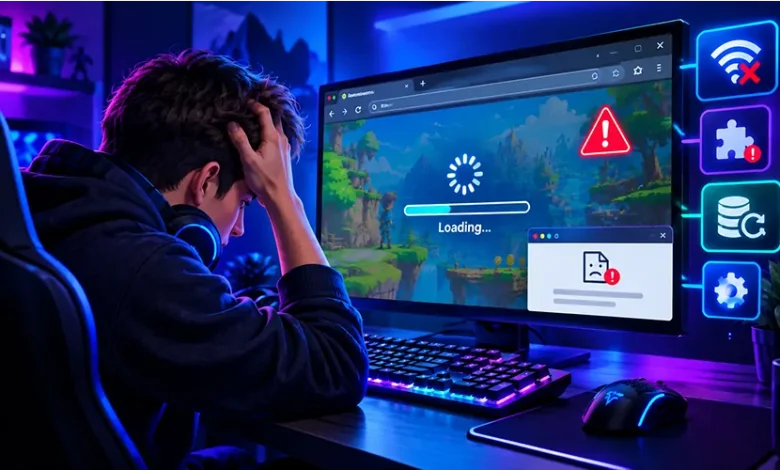
A browser game not loading can be caused by something as simple as a stale page or blocked JavaScript, but the problem can also come from your internet connection, browser settings, graphics acceleration, or the game server itself. The useful first step is to identify which part of the loading process is failing instead of repeatedly refreshing the page.
This guide walks through the most common causes and gives you a practical order for testing them. The steps apply to many HTML5 games, including casual, arcade, puzzle, action, and strategy games played directly in a desktop or mobile browser.
Start With the Fastest Checks
Before changing browser settings or clearing anything, try a few simple checks. They can quickly tell you whether the problem is local to your device or affecting the game more broadly.
- Refresh the page once: A temporary loading error may disappear after a normal refresh.
- Open another website: If other pages are also slow or unavailable, investigate the internet connection first.
- Try another browser: If the game works elsewhere, the original browser or one of its settings may be responsible.
- Wait briefly and try again: A game server can experience a temporary problem that your device cannot fix.
- Restart the browser: Closing all browser windows and reopening the browser can clear a temporary session problem.
If these checks do not help, move through the troubleshooting steps below rather than changing several settings at once. Testing one possible cause at a time makes it easier to identify the actual problem.
Check Whether the Game Is Stuck or Completely Blank
Not every loading problem looks the same. A game that shows a loading screen indefinitely has a different likely cause from a page that displays a blank area, an error message, or a game that loads but becomes unresponsive.
| What you see | Possible cause | First thing to try |
|---|---|---|
| Loading screen never finishes | Connection, server, cache, or game asset problem | Refresh and test another browser |
| Blank game area | JavaScript, browser compatibility, or blocked content | Try a private browsing window or another browser |
| Game starts but freezes | High resource usage, browser issue, or graphics problem | Close other tabs and applications |
| Error appears immediately | Configuration, browser, connection, or server issue | Read the error message and test another page |
| Game works on one device but not another | Device or browser-specific configuration | Compare browser settings and available resources |
Identifying the symptom helps prevent unnecessary troubleshooting. For example, clearing all browser data is unlikely to be the first thing you need if the same game fails on several unrelated devices.
Refresh the Game Without Assuming It Is Your Connection
A normal refresh is worth trying because a game may fail to retrieve one of its required files during the initial page load. This can happen even when other websites appear to work normally.
If the page repeatedly returns to the same incomplete loading state, try opening the game in a private or incognito window. This provides a useful test because the browser uses a cleaner temporary session and typically does not reuse the same stored site data in the usual way.
If the game works in private browsing but not in a normal window, the problem may involve cached data, cookies, extensions, or another browser-specific setting.
Clear Cached Data When an Old File Is Causing Trouble
Browsers store copies of some website resources so that pages can load more efficiently later. Normally this is helpful, but a game can behave incorrectly if an old cached resource conflicts with a newer version of the site.
If the same browser game worked previously and suddenly stopped loading after a site update, refreshing or clearing the relevant site data can be useful. Prefer clearing data for the affected site when your browser provides that option rather than deleting every saved browsing item unnecessarily.
Keep in mind that clearing cookies or site data can sign you out of websites and may remove locally stored preferences. If a game does not require an account, this may be less significant, but it is still worth understanding what your browser will remove before confirming the action.
Make Sure JavaScript Is Available
Many modern browser games depend heavily on JavaScript. If JavaScript is disabled or restricted for the site, the surrounding webpage may load while the actual game remains blank or never starts.
Check the browser’s site permissions and make sure JavaScript is allowed for the game website. The exact location of this setting varies between browsers, so look for site permissions or content settings rather than following instructions designed for a different browser version.
If JavaScript is already enabled, an extension can still interfere with scripts or other resources. Temporarily testing the page with extensions disabled can help determine whether an installed browser add-on is involved.
Test Browser Extensions as a Possible Cause
Privacy tools, content blockers, script controls, and security extensions can sometimes prevent a game from loading required resources. This does not necessarily mean the extension is defective; it may simply be applying a rule to something the game needs.
The easiest diagnostic test is to open the game in a private browsing window if your browser does not enable the relevant extensions there. If the game loads normally in that environment, investigate your extensions rather than repeatedly reinstalling the browser.
If you have several extensions installed, disable them one at a time and reload the game after each change. This approach makes it easier to identify the extension responsible.
Rule Out a Weak or Unstable Connection
A browser game may need to download multiple assets before it can begin. An unstable connection can interrupt one of those requests even when ordinary webpages appear to load.
Try another website that contains several images or other resources. If pages are intermittently failing, becoming unusually slow, or repeatedly reconnecting, the issue may be with the connection rather than the game.
- Move closer to your Wi-Fi access point if the signal is weak.
- Try a wired connection on a desktop computer when available.
- Pause large downloads or other bandwidth-heavy activity temporarily.
- Restart your network equipment if your connection is broadly unstable.
- Test the game again after the connection becomes stable.
If other websites work normally and only one game refuses to load, the connection becomes a less obvious suspect and game-specific troubleshooting becomes more useful.
Close Extra Tabs and Resource-Heavy Applications
Browser games can use significant amounts of memory and processor resources, particularly when they contain animations, large maps, physics systems, or complex visual effects. A computer that is already under heavy load may struggle to initialize the game correctly.
Close unnecessary browser tabs and applications, then open the game again. This is especially useful on systems with limited memory, where many open tabs can leave fewer resources available for the game.
If the game loads after you close other programs, the underlying issue may be resource pressure rather than a broken game page.
Consider Graphics Acceleration Problems
Some browser games rely on graphics technologies supported by the browser and the device’s graphics hardware. If a game loads partially and then freezes, displays unusual rendering problems, or crashes the browser tab, graphics acceleration can be worth investigating.
Update your browser and operating system first. Updates can include compatibility fixes for graphics components and web technologies.
If the problem continues, check your browser’s hardware or graphics acceleration settings. Changing this setting can affect performance, so treat it as a diagnostic step rather than a universal fix. If switching the setting makes no difference, return it to its previous state.
Try a Different Browser or Device
Testing the same game somewhere else is one of the most useful troubleshooting methods because it separates device-specific problems from problems affecting the game itself.
For example, if the game fails in one browser but loads normally in another on the same computer, investigate the first browser’s cache, permissions, extensions, and compatibility. If it fails across multiple browsers on the same device, the cause may be related to the device, network, or game service.
If the game also fails on a different device using a separate connection, that provides stronger evidence that the issue may be on the game’s side rather than your browser.
When the Game Server Is the Problem
Sometimes a browser game not loading has nothing to do with your computer. The game’s server or the service delivering its files may be temporarily unavailable, overloaded, undergoing maintenance, or experiencing a technical fault.
There are a few clues that point in this direction. The game may suddenly stop working after previously loading normally, multiple browsers may show the same failure, and other unrelated websites may continue working without problems.
In that situation, repeatedly changing local settings is unlikely to solve the underlying issue. Check the game’s official status information or announcements when available, then try again later.
A Simple Troubleshooting Order
When you want the quickest practical path, work through these checks from least disruptive to more involved:
- Refresh the game page.
- Check whether other websites are loading normally.
- Open the game in a private browsing window.
- Try another browser.
- Check that JavaScript is allowed.
- Temporarily test without relevant browser extensions.
- Close unnecessary tabs and applications.
- Clear the affected site’s cached data if the problem persists.
- Update the browser and operating system.
- Test the game on another device or connection.
After each step, reload the game. Once it starts working, you can stop. There is no benefit in resetting additional browser settings if you have already identified and solved the cause.
Common Troubleshooting Mistakes to Avoid
Changing Everything at Once
If you clear all browser data, disable extensions, change graphics settings, and reinstall the browser at the same time, you may solve the problem without learning what caused it. Make one meaningful change at a time whenever possible.
Assuming Every Loading Problem Is an Internet Problem
A stable connection does not guarantee that every game resource is available. Browser permissions, cached files, extensions, and server-side problems can produce similar symptoms.
Immediately Reinstalling the Browser
Reinstalling a browser is a disruptive step and rarely makes sense as an early diagnostic test. Try a private window, another browser, and site-specific troubleshooting first.
Ignoring the Error Message
If the page provides a specific error message, save the wording before refreshing repeatedly. A precise message can reveal whether the problem involves a connection, browser feature, unavailable resource, or another component.
Frequently Asked Questions
Why is my browser game stuck on the loading screen?
A game can remain on its loading screen because of a failed resource request, cached site data, browser extensions, JavaScript restrictions, limited device resources, or a temporary server problem. Testing a private window and another browser can help narrow down the cause.
Why does a browser game work in one browser but not another?
Different browsers can have different settings, extensions, cached data, and compatibility behavior. If the game works elsewhere, compare the affected browser’s site permissions, extensions, and stored site data.
Can clearing the cache fix a browser game?
Yes, it can help when outdated or corrupted cached resources interfere with the current version of a game. Clear the affected site’s data when practical rather than deleting unrelated browsing information.
Why does the game load but then freeze?
Freezing can be related to high memory or processor usage, graphics handling, browser compatibility, or a problem within the game itself. Closing other applications and testing another browser are useful first diagnostics.
What if the game does not load on any browser?
If the same problem occurs across multiple browsers and devices while other websites work normally, the issue may be associated with the game or its server. Check for official service information and try again later.
Final Thoughts
Fixing a browser game that will not load is mostly a process of elimination. Start with simple tests, identify whether the problem follows the browser or the game, and only make more disruptive changes when the evidence points in that direction.
In many cases, a private browsing test, another browser, a check of JavaScript and extensions, or a review of the network connection can quickly reveal where the problem lies. If the failure follows the game across different environments, the most useful next step may simply be waiting for the service to recover.