How to Reduce Gaming Lag: Practical Fixes for Smoother Online Play

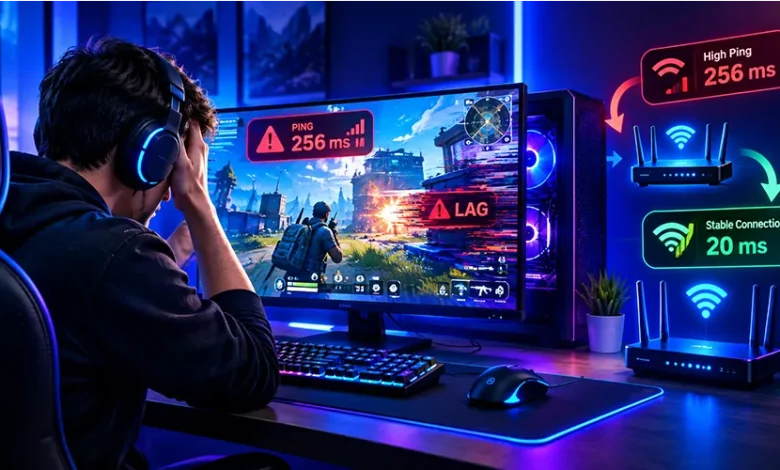
Lag can turn an otherwise enjoyable online game into a frustrating experience. Your character may respond late, opponents can appear to jump across the screen, menus may take longer to react, or a browser game can suddenly become sluggish. The important thing is that “lag” does not always have the same cause.
If you want to know how to reduce gaming lag, start by identifying whether the problem comes from your internet connection, your device, the game server, or the game itself. Once you know which part is responsible, the right fix is usually much easier to find.
Start by Finding Out What Kind of Lag You Have
Before changing settings or buying new equipment, pay attention to what actually happens when the game slows down. Different symptoms point toward different problems.
| What you notice | Likely cause | First thing to check |
|---|---|---|
| Players teleport or actions happen late | High latency or packet loss | Connection quality and server distance |
| The game looks like a slideshow | Low frame rate | Graphics settings and device performance |
| Everything becomes slow while downloading | Network congestion | Background downloads and other devices |
| Lag appears only in one game | Game or server-specific issue | Server status and game settings |
| Browser games slow down after many tabs are open | Browser or system resource usage | Open tabs and background applications |
This distinction matters because a faster internet package will not necessarily fix low frame rates. Likewise, lowering graphics quality will not solve a poor Wi-Fi connection.
Check Your Connection Before Changing Game Settings
For online gaming, connection quality is often more important than having an extremely high download speed. A connection can be fast enough for gaming while still producing problems because of unstable latency, packet loss, wireless interference, or network congestion.
If possible, compare your experience when the network is quiet with periods when several people are streaming video, downloading large files, or using cloud services. If the game becomes noticeably worse when the network is busy, congestion may be contributing to the problem.
Use a Wired Connection When Practical
An Ethernet connection can provide a more consistent link between your gaming device and router than Wi-Fi. This can be particularly useful for competitive games where sudden connection changes are more noticeable.
If running a cable is impractical, try moving closer to the router and reducing physical obstacles between the device and access point. A crowded wireless environment can also affect consistency, so changing the router’s position or wireless configuration may help.
Reduce Unnecessary Network Traffic
Pause large downloads, game updates, cloud synchronization, and other bandwidth-heavy activity while playing. Also check whether another device on the same network is consuming substantial bandwidth.
You do not necessarily need to disconnect every other device. The goal is to prevent unnecessary traffic from competing with the game connection at the wrong time.
Choose a Server Location That Keeps Latency Reasonable
Online games usually communicate with a remote server. The farther the connection has to travel, and the more network infrastructure involved, the greater the potential latency.
If a game lets you choose a server or region, select the location that is geographically and network-wise closest to you when practical. The lowest-distance option is not guaranteed to be the fastest in every situation, but nearby regions are often a sensible starting point.
Do not assume that a high ping automatically means your computer is underpowered. Ping measures network response time, while frame rate measures how quickly your device renders the game. They describe different parts of the experience.
Lower Graphics Settings When the Problem Is Low FPS
If the game feels slow even though your connection appears stable, check the frame rate. A low frame rate can look like internet lag because the image is not updating smoothly, but the underlying problem is local hardware performance.
Start with settings that place a significant workload on the graphics processor. Depending on the game, reducing resolution, shadows, reflections, ambient effects, view distance, or other demanding visual options can improve performance.
Change One or Two Settings at a Time
Avoid immediately turning every graphical option to its lowest value. Make a small adjustment, test the game, and see whether performance improves. This approach makes it easier to identify which settings matter most on your device.
If the game provides a frame-rate limiter, experiment with a stable target rather than simply allowing the system to work as hard as possible. Consistent performance can feel better than constantly fluctuating frame rates.
Close Programs That Compete for System Resources
Games share your computer’s resources with everything else running in the background. A browser with many active tabs, video applications, file synchronization, launchers, recording software, and other programs can consume memory, processor time, storage bandwidth, or network capacity.
Before launching a demanding game, close applications you do not need. On a computer, the system’s task manager or activity monitor can help identify programs using unusually high amounts of CPU, memory, GPU, or network resources.
For browser games, this is especially relevant because the browser itself can become resource-heavy when many tabs are open. Closing unused tabs can sometimes make a noticeable difference.
Keep Your Game, Browser, and Drivers Updated
Updates can address performance problems, compatibility issues, and bugs. Keeping the game and the software it depends on reasonably current can therefore be part of routine troubleshooting.
On a PC, graphics drivers are particularly relevant to game performance. If a performance problem began immediately after an update, however, do not automatically assume that installing another update will solve it. Check the game’s current requirements and available support information before making major changes.
Browser players should also keep their preferred browser updated. If one browser performs poorly with a particular game, testing the same game in another supported browser can help determine whether the browser is contributing to the problem.
Watch Your Device’s Temperature and Power Mode
Heat can become a performance issue during longer gaming sessions. Some computers reduce their operating performance when temperatures become too high, which can result in falling frame rates or inconsistent performance.
Make sure the device has adequate ventilation and that air vents are not blocked. On laptops, placing the computer on a hard, flat surface is generally preferable to using it on soft surfaces that can restrict airflow.
Power-saving modes can also limit performance on some devices. If your operating system offers different power profiles, check which one is active when gaming. On portable devices, remember that higher performance can increase power consumption and heat.
Browser Gaming Has Its Own Sources of Lag
Browser games can experience both network and local performance problems. A game may run directly in a browser while other tabs, extensions, video playback, and background processes compete for the same resources.
If a browser game suddenly becomes sluggish, try closing unnecessary tabs and applications first. If the problem continues, test the game in another supported browser. This can help distinguish a game-specific problem from a browser-related one.
It is also worth checking whether the game behaves differently in a private browsing window. If performance changes significantly, extensions or browser settings may deserve further investigation.
Simple Fixes to Try in Order
You do not need to change everything at once. A short troubleshooting sequence can save time and make the cause easier to identify.
- Restart the game and check whether the problem is temporary.
- Check whether other devices or applications are using the network heavily.
- Move closer to the router or switch to Ethernet if available.
- Select a nearby game server or region when the game provides that option.
- Close unnecessary programs and browser tabs.
- Check whether the game’s frame rate is low.
- Reduce demanding graphics settings if FPS is the problem.
- Check your device’s temperature and ventilation.
- Update the game, browser, operating system, and graphics driver when appropriate.
- Test another online game to determine whether the issue affects everything or only one title.
The final step is particularly useful. If several games work normally but one game consistently has high latency or connection problems, the issue may be specific to that game’s servers, network route, or software rather than your entire setup.
When Changing Your Internet Plan May Not Help
A common assumption is that buying a faster internet package will automatically eliminate gaming lag. Download speed and gaming responsiveness are related to network conditions, but they are not the same measurement.
If your connection already has sufficient capacity for the game, increasing the advertised download speed may have little effect on latency. Problems such as wireless interference, congestion, packet loss, router issues, or a distant server can remain.
Before paying for a faster plan, identify the actual symptom. If large downloads slow everything else on your network, additional bandwidth may help with congestion. If the game has unstable latency even when the network is otherwise quiet, investigate connection quality instead.
Common Mistakes That Can Make Lag Troubleshooting Harder
Changing Everything at Once
If you change graphics settings, router settings, drivers, browser settings, and operating-system options simultaneously, you may not know which change affected the problem. Make controlled changes whenever possible.
Confusing Ping With FPS
A high ping problem usually shows up as delayed or inconsistent online interactions. Low FPS is a rendering problem and often appears as choppy or uneven visuals. They can happen together, but they require different solutions.
Ignoring Background Activity
A game may appear to be lagging because another program is downloading files or consuming processor and memory resources. Check what your device is doing before assuming the game itself is responsible.
Blaming Wi-Fi Immediately
Wi-Fi can cause instability, but not every gaming problem is a wireless problem. If the issue is limited to one game or appears as low frame rates, changing your connection may not address the real cause.
A Practical Way to Diagnose Persistent Lag
If the problem keeps returning, keep a simple record of when it happens. Note the game, approximate time, server region, whether other people were using the network, and whether the issue looked like delayed actions or low frame rate.
Patterns can reveal more than a single test. For example, lag that appears only during busy household internet usage points toward network congestion, while low performance that appears after extended sessions may justify checking temperatures and resource usage.
If only one game is affected, look at that game’s official support information or service-status information before making major changes to your hardware or network. A problem affecting many players cannot necessarily be fixed from your own device.
Frequently Asked Questions
Does faster internet reduce gaming lag?
Not always. Gaming responsiveness depends on factors such as latency, connection stability, packet loss, congestion, and server location. More bandwidth can help when your connection is overloaded, but it is not a universal solution for high ping.
Can Wi-Fi cause online game lag?
Yes. Wireless interference, distance from the router, signal obstacles, and network congestion can contribute to an unstable connection. Testing with Ethernet can help determine whether Wi-Fi is part of the problem.
Why does my game lag even when my FPS is high?
If your frame rate is stable but online actions are delayed, the problem may be network latency or packet loss rather than rendering performance. Check the game’s network indicators and server region if available.
Why does lowering graphics sometimes fix “lag”?
Lowering graphics settings can improve frame rate when the device is struggling to render the game. This fixes performance-related stuttering, but it will not normally solve high network latency.
Can closing browser tabs improve browser gaming?
It can. Open tabs may consume memory and processor resources, especially when they contain videos, interactive applications, or other demanding content. Closing unnecessary tabs is a simple troubleshooting step.
Final Thoughts
The most effective way to reduce gaming lag is to identify the source before changing settings. Separate network latency from low FPS, reduce unnecessary network and system activity, use a stable connection, choose an appropriate server region, and adjust graphics only when your device is struggling to render the game.
Once you approach the problem this way, troubleshooting becomes much more systematic. Instead of changing random settings, you can test one likely cause at a time and keep the changes that genuinely improve your gaming experience.