How to Improve Gaming Performance on Your Computer: Practical Tips for Smoother Gameplay

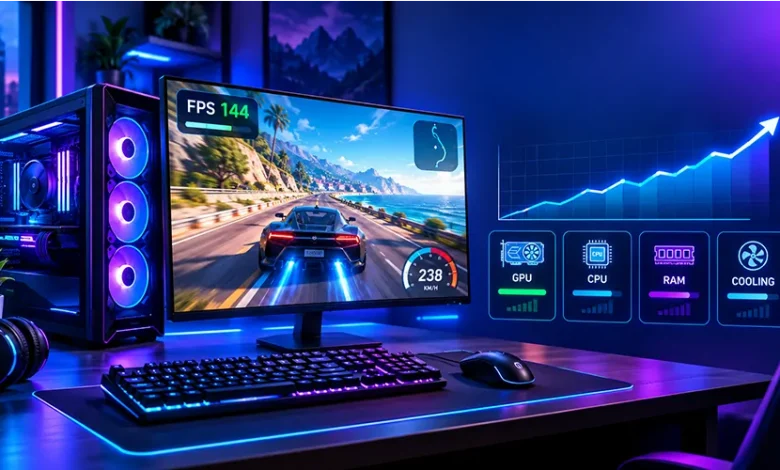
A game can feel slow or frustrating even when your computer technically meets its requirements. Low frame rates, sudden stuttering, long loading times, overheating, and inconsistent performance can come from several different parts of the system. The good news is that you do not always need to buy a new computer to improve gaming performance.
Before spending money on upgrades, it is worth checking the settings and conditions that affect how your computer handles games. This guide walks through practical changes you can make, starting with the simplest fixes and moving toward hardware and system-level improvements.
Start by Identifying What Is Actually Causing the Problem
The most important first step is to determine why a game is performing poorly. A low frame rate caused by an overloaded graphics card requires a different solution from stuttering caused by background applications or insufficient memory.
Pay attention to what happens during gameplay. If performance is consistently low, your hardware may be struggling with the game’s workload. If the game runs well and then suddenly freezes or becomes jerky, background processes, thermal throttling, memory pressure, or another system issue may be involved.
Loading problems are different again. If gameplay itself is smooth but levels take a long time to load, storage speed or available disk space may be more relevant than graphics settings.
Common symptoms and possible causes
| Problem | Possible causes | First things to check |
|---|---|---|
| Low FPS | GPU or CPU limitations, demanding settings | Resolution, graphics quality, frame rate usage |
| Random stuttering | Background processes, memory pressure, drivers, overheating | Task Manager, temperatures, driver status |
| Long loading times | Slow storage, limited free space | Drive type and available storage |
| Performance drops after playing for a while | Heat buildup or thermal throttling | CPU and GPU temperatures, cooling |
| Online lag | Network latency, unstable connection, server conditions | Ping, connection stability, network usage |
Make the Biggest Improvements Without Buying Hardware
Close unnecessary background applications
Games compete with other programs for CPU time, memory, storage activity, and sometimes network bandwidth. A browser with many open tabs, video-editing software, cloud synchronization, launchers, and other applications can consume resources while you are playing.
Before starting a demanding game, close programs you do not need. On Windows, Task Manager can help you identify applications that are using an unusually large amount of CPU, memory, or disk activity.
Be careful when ending processes, however. Avoid closing Windows system processes or unfamiliar services simply because they appear in Task Manager.
Restart the computer when performance becomes unusual
A restart is simple, but it can clear temporary resource usage and resolve software states that have accumulated during a long session. If a game normally performs well but becomes increasingly unstable after the computer has been running for a long time, restarting is a sensible troubleshooting step.
Keep enough free storage available
A nearly full system drive can make general computer maintenance more difficult and leave less room for temporary files and game-related operations. Check your storage regularly and remove files or applications you no longer need.
Do not delete folders simply because their names look unfamiliar. Use Windows storage-management tools or uninstall applications through the normal system settings.
Adjust Game Graphics for Better Performance
Graphics settings are often the fastest way to trade visual detail for smoother gameplay. You do not need to reduce every setting to its lowest value. Instead, change the options that have a meaningful effect on rendering performance while keeping the visual features you care about.
Lower resolution when the GPU is struggling
Resolution determines how many pixels the graphics processor has to render. Moving from a higher resolution to a lower one can substantially reduce the rendering workload, although the image will become less detailed.
If a game offers resolution scaling or a rendering-scale option, this can provide another way to reduce GPU workload while keeping the monitor’s native output resolution.
Reduce demanding visual settings selectively
Options such as shadows, reflections, volumetric effects, view distance, ambient effects, and certain lighting features can have different performance costs depending on the game and hardware.
Instead of immediately selecting the lowest preset, try reducing the most demanding settings one at a time. This makes it easier to see which changes actually improve frame rates.
Use a sensible frame-rate target
A computer does not necessarily need to render as many frames as possible. If your system produces an unstable frame rate, limiting the target to a level it can maintain consistently may create a smoother experience than allowing large fluctuations.
The appropriate target depends on the game, monitor, and hardware. Competitive games may benefit from higher frame rates, while slower-paced strategy or puzzle games may be perfectly comfortable at a lower and more consistent level.
Check Your Graphics Driver and Windows Settings
Graphics drivers provide the software layer through which games communicate with the GPU. Keeping the driver updated can resolve compatibility problems and provide support for newer games, although a newer driver is not a guarantee of better performance in every situation.
Download drivers through the official support software or website for your graphics hardware manufacturer. Avoid unofficial driver-download sites that bundle unknown software with installers.
Review Windows gaming features
Windows includes settings designed for gaming and graphics workloads. Depending on your version of Windows and hardware, features such as Game Mode, graphics preferences, and hardware-accelerated options may be available.
These settings can vary between computers, so treat them as troubleshooting options rather than universal performance boosters. If changing a setting causes unexpected behavior, you can revert the change and test again.
Make sure the game uses the intended GPU
Some computers have more than one graphics processor, particularly laptops that combine integrated graphics with a dedicated GPU. If a demanding game is accidentally assigned to the lower-power graphics processor, performance can suffer.
Check the Windows graphics settings and the graphics manufacturer’s control software to confirm that the game is using the appropriate GPU.
Watch Temperatures Before Blaming Your Hardware
Heat can become a performance issue when a CPU or GPU reaches temperatures that cause the system to reduce operating speeds. This behavior is commonly described as thermal throttling.
If a game starts smoothly but performance falls after several minutes, heat is worth investigating. Dust buildup, restricted airflow, a poorly positioned laptop, blocked vents, or an aging cooling system can all contribute to higher temperatures.
Simple cooling checks
- Make sure desktop and laptop ventilation openings are not blocked.
- Keep laptops on hard, flat surfaces when gaming.
- Remove dust from accessible cooling vents using appropriate cleaning methods.
- Check CPU and GPU temperatures with a reputable monitoring utility.
- Pay attention to whether performance drops consistently after the system heats up.
Do not assume that a particular temperature number is automatically dangerous because different processors and GPUs have different operating specifications. If temperatures appear unusually high, consult the hardware manufacturer’s specifications and cooling guidance.
Decide Whether Your Hardware Is the Limiting Factor
Software adjustments have limits. If your computer consistently struggles with a particular game even after unnecessary background tasks are closed and graphics settings are reasonable, one of the main hardware components may simply be reaching its performance limit.
CPU limitations
The processor handles game logic, simulation, artificial intelligence, physics, and many other tasks. A CPU limitation can become especially noticeable in games with large numbers of characters, complex simulations, or high frame-rate targets.
GPU limitations
The graphics processor is primarily responsible for rendering the visual workload. High resolution, detailed effects, complex lighting, and demanding graphical features can place substantial pressure on the GPU.
RAM limitations
System memory allows Windows, games, and other applications to keep active data readily available. If available RAM becomes very limited, the computer may rely more heavily on storage, which can contribute to sluggishness or stuttering.
Storage limitations
A solid-state drive can provide much faster access to game files than older mechanical storage. Storage speed primarily affects tasks such as booting, loading, and asset streaming rather than magically increasing every game’s frame rate.
This distinction matters when deciding what to upgrade. If your game already maintains a stable frame rate but takes a long time to load, storage may deserve more attention than a graphics upgrade.
Use a Simple Upgrade Decision Process
If you are considering spending money, identify the bottleneck first rather than upgrading whichever component sounds most powerful. A graphics card upgrade may have limited value if the processor is already restricting performance, while adding memory will not solve a GPU that cannot render a demanding game at your desired settings.
- Measure the problem: Observe frame rates, stuttering, loading behavior, and system resource usage.
- Reduce unnecessary software load: Close applications and background tasks that are not needed.
- Test graphics settings: Lower resolution or demanding effects and compare the result.
- Check temperatures: Determine whether heat-related performance reductions are occurring.
- Identify the bottleneck: Look at CPU, GPU, RAM, and storage activity while the problem occurs.
- Upgrade only when necessary: Choose hardware based on the component that is actually limiting the experience.
This approach can prevent an expensive upgrade from solving the wrong problem.
Browser and Lightweight Games Need a Different Approach
Not every game requires a powerful gaming PC. Browser games, puzzle games, arcade games, and other lightweight experiences can sometimes perform poorly because of browser settings, excessive tabs, extensions, or limited system resources rather than demanding graphics.
If a browser game is stuttering, close unnecessary tabs and applications first. Test the game in a clean browser session and make sure your browser is updated. If the problem appears only in one browser, testing another supported browser can help determine whether the issue is browser-specific.
For lightweight games, aggressively lowering graphics quality may provide little benefit. The more useful solution could be reducing background activity or resolving a browser-related performance problem.
Separate Frame Rate Problems From Internet Lag
Online games can feel slow for two very different reasons. Low frame rates affect how smoothly the game is rendered on your computer, while network latency affects how quickly information travels between your system and the game server.
If the entire image visibly becomes choppy, investigate local performance. If the game remains visually smooth but other players teleport, actions arrive late, or the connection repeatedly drops, investigate the network instead.
For online play, reduce unnecessary network activity while gaming when possible. Downloads, cloud synchronization, streaming, and other devices using the same connection can compete for bandwidth. Network quality can also depend on your connection type, routing, and the game’s server environment.
Common Performance Fixes That Can Backfire
Changing every setting at once
If you change resolution, shadows, drivers, power settings, and several other options simultaneously, you may not know which change helped or caused a new problem. Make one or a small group of controlled changes, then test the game again.
Installing random optimization software
Programs that promise instant gaming acceleration are not automatically useful. Some may add additional background processes or change system settings without addressing the actual bottleneck.
Disabling security features unnecessarily
Turning off important security protections for a small performance gain can create unnecessary risk. Look for less intrusive causes before changing security settings.
Assuming lower settings always solve stuttering
If lowering graphical quality does not meaningfully change the problem, the GPU may not be the main limitation. CPU load, memory usage, storage activity, drivers, or thermal behavior may need investigation instead.
A Quick Pre-Game Performance Checklist
When a game suddenly performs worse than expected, work through this short checklist before making major changes:
- Restart the computer if it has been running for a long time.
- Close unnecessary applications and browser tabs.
- Check available storage space.
- Confirm that the game is using the intended GPU.
- Check whether graphics drivers need attention.
- Look for unusual CPU, GPU, RAM, or disk usage.
- Check for overheating or blocked ventilation.
- Reduce demanding graphics settings and test again.
- For online games, distinguish network lag from low FPS.
- Only consider hardware upgrades after identifying the limiting component.
Frequently Asked Questions
What is the fastest way to improve gaming performance?
Start by closing unnecessary background applications and reducing demanding graphics settings. If the problem continues, check temperatures, system resource usage, drivers, and which hardware component is reaching its limit.
Does lowering graphics quality increase FPS?
It can, particularly when the graphics processor is the performance bottleneck. Lowering resolution and demanding visual effects generally reduces the amount of work the GPU must perform.
Can adding RAM improve gaming performance?
Additional RAM can help when the computer is running short of available memory. It is less likely to provide a major improvement when the game is already running comfortably within the system’s existing memory capacity.
Will an SSD increase FPS?
An SSD can substantially improve loading and file-access behavior, but it does not automatically produce a large increase in frame rate. FPS is more directly affected by factors such as the CPU, GPU, game settings, and resolution.
Why does my game run well at first and then slow down?
A performance decline after extended play can be related to increasing temperatures and thermal throttling. Background activity, memory usage, or other software issues can also contribute, so monitoring the system while the slowdown occurs is useful.
Should I upgrade my CPU or GPU first?
There is no universal answer. Identify which component is limiting performance in the games you actually play, then choose an upgrade that addresses that bottleneck and fits the rest of the system.
Final Thoughts
Improving gaming performance is usually easier when you treat it as a troubleshooting process rather than a race to buy newer hardware. Start with background applications, graphics settings, drivers, storage, cooling, and resource usage, then determine whether the computer’s hardware is genuinely limiting the experience.
A few targeted changes can be more useful than dozens of generic optimization tricks. Once you know what is causing the slowdown, you can choose a practical fix and spend money only when an upgrade is actually justified.