Online Games for Low End PC: A Practical Guide to Better Performance

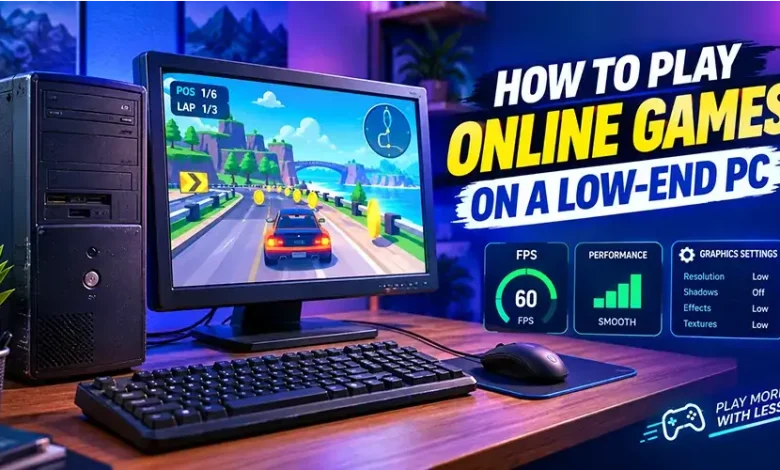
A low-end PC does not automatically mean you have to give up on online gaming. If your computer struggles with demanding 3D games, there are still plenty of browser games, lightweight multiplayer titles, puzzle games, arcade experiences, strategy games, and older PC games that can run comfortably with the right approach.
The key is to match the game and its settings to what your computer can actually handle. Reducing unnecessary background activity, choosing sensible graphics options, using a suitable browser, and understanding the difference between hardware limitations and internet problems can make online gaming much smoother.
Start by Understanding What Your PC Can Handle
Before changing settings or searching for new games, identify the parts of your computer that are most likely to limit performance. For gaming, the processor, graphics hardware, RAM, storage, and available system resources all matter, but they do not affect every game in the same way.
A simple browser-based puzzle game may place very little demand on the graphics processor, while a 3D action game can require much more graphical and processing power. This is why a computer that struggles with one title may run another game without serious problems.
The main specifications to check
- Processor: A slower CPU can become a limitation in games with many moving objects, simulations, or multiplayer activity.
- Graphics hardware: Integrated graphics can handle many lightweight games, but demanding 3D titles may require a dedicated GPU.
- RAM: Limited memory can cause slowdowns when the game is running alongside browsers and other applications.
- Storage: A nearly full drive can make general system maintenance more difficult, while an SSD can improve loading and responsiveness compared with an older mechanical drive.
- Available resources: Background applications can consume CPU, memory, and network resources before the game even starts.
You do not need a high-end machine to enjoy online games. What matters is choosing software that fits the resources available rather than expecting every modern game to run at maximum settings.
Choose Games That Naturally Suit Modest Hardware
The easiest way to improve your experience is often to choose the right type of game. Instead of trying to force a demanding title onto an underpowered system, look for games designed around simple graphics, efficient mechanics, or browser-based play.
Browser games are particularly convenient because many can be launched without installing a large game client. Casual arcade games, card games, word games, turn-based strategy titles, puzzle games, and simpler multiplayer experiences can all be good starting points.
Game types worth exploring
- Puzzle games: Match-three, logic, word, and physics-based puzzles often have modest hardware requirements.
- Arcade games: Simple controls and lightweight graphics make many arcade-style games suitable for older computers.
- Strategy games: Turn-based and less graphically intensive strategy games can provide deep gameplay without demanding modern graphics hardware.
- Card and board games: These usually emphasize gameplay systems rather than complex visual effects.
- Casual browser games: Many are designed for quick sessions and can work well on ordinary laptops and desktop PCs.
- Older multiplayer games: Some established games have much lower hardware requirements than newer releases.
When choosing a game, check its published system requirements when they are available. Minimum requirements are not a guarantee of smooth performance, so a computer that only barely meets them may still need reduced graphics settings.
Lower the Settings That Cost the Most Performance
If a game technically runs but feels slow, you do not necessarily need to stop playing. Graphics settings allow you to trade visual quality for performance, and several options can make a noticeable difference.
Start with resolution
Resolution determines how many pixels the computer has to render. Lowering it reduces the amount of graphical work required per frame, although the image will become less sharp.
If a game is difficult to run, try one moderate reduction rather than immediately choosing the lowest possible resolution. A small change can sometimes provide a useful performance improvement while keeping the game reasonably clear.
Reduce shadows and visual effects
Dynamic shadows, reflections, lighting effects, particles, ambient effects, and similar features can consume significant graphical resources. Reducing these options can help an older GPU maintain a steadier frame rate.
Use a lower texture setting when necessary
Texture quality affects how detailed surfaces appear. Lowering textures can reduce memory usage, particularly on systems with limited graphics memory. If your game frequently stutters rather than simply displaying a low frame rate, memory pressure may be part of the problem.
Consider a frame-rate limit
A stable frame rate can sometimes feel better than constantly fluctuating performance. If a game offers a frame-rate limiter, choosing a realistic target for your hardware can prevent the system from continuously trying to render more frames than it can sustain.
Make Your Browser Less Demanding
For browser games, the browser itself becomes part of the gaming environment. A large number of open tabs, active web applications, extensions, and background processes can consume memory and processing power.
Before starting a game, close tabs you do not need. Video-heavy pages, web applications, large downloads, and other demanding browser activities can compete with the game for system resources.
It is also worth keeping the browser updated. Modern browsers receive performance, compatibility, and security improvements, so using an outdated version can create unnecessary problems.
Be selective with extensions
Most extensions will not completely prevent a game from working, but some can add additional processing or interfere with individual websites. If a browser game behaves strangely, testing it in a clean browser session can help determine whether an extension is involved.
Close Unnecessary Programs Before Playing
A low-end computer has fewer resources to divide between applications. A music player, multiple browser windows, file synchronization, video calls, and other programs can collectively reduce the resources available to a game.
Before launching a demanding title, close applications that you are not using. On Windows, the Task Manager can help identify programs consuming unusually high amounts of CPU, memory, disk activity, or network bandwidth.
Do not randomly terminate unfamiliar system processes. Focus on applications you recognize and do not need during your gaming session.
Know Whether the Problem Is Performance or Internet Lag
One of the most useful troubleshooting skills is distinguishing a slow computer from a poor network connection. They can feel similar during an online game, but the solutions are completely different.
| What you notice | Possible cause | What to check |
|---|---|---|
| Low and unstable frame rate | Hardware or graphics settings | Resolution, shadows, effects, CPU and GPU usage |
| Game looks smooth but actions respond late | Network latency | Connection quality, server distance, and network activity |
| Short freezes while the game is running | Memory, storage, CPU, or background activity | RAM usage, disk activity, and running applications |
| Other websites also load slowly | Network or browser issue | Connection, downloads, browser tabs, and extensions |
| Game becomes slower as the session continues | Resource usage or heat-related throttling | Memory usage, ventilation, and system temperatures |
This distinction saves time. Lowering graphics settings will not fix a poor internet connection, while restarting a router will not make a weak graphics processor render a demanding game faster.
Simple Changes That Can Improve a Low-End Gaming PC
You do not always need to buy new hardware to make an older computer more comfortable for gaming. Start with changes that cost nothing and are easy to reverse.
- Close unnecessary applications: Free CPU and memory resources before starting the game.
- Reduce graphics quality: Lower resolution, shadows, effects, and other demanding options.
- Reduce browser clutter: Close unnecessary tabs and temporarily disable extensions that are not needed.
- Check available storage: Keep reasonable free space on the system drive rather than allowing it to become completely full.
- Keep software updated: Use supported versions of your operating system, browser, and graphics drivers when appropriate.
- Improve ventilation: Make sure air vents are not blocked, especially on laptops.
- Use a stable network connection: If possible, reduce competing network activity while playing multiplayer games.
Make changes one at a time when troubleshooting. That makes it easier to identify which adjustment actually helped.
When a Small Upgrade Makes Sense
If your PC remains slow after sensible software and graphics adjustments, hardware may be the limiting factor. You do not necessarily need to replace the entire computer, however.
For some older systems, increasing RAM can help when the computer frequently runs out of available memory. Replacing an older mechanical hard drive with an SSD can also improve general system responsiveness and loading times, although an SSD does not turn a weak graphics processor into a gaming GPU.
Hardware compatibility matters. Before purchasing an upgrade, check the computer’s supported memory type, available slots, storage interface, power requirements, and other relevant specifications.
If the computer is very old, compare the total upgrade cost with the price of a newer entry-level system. Spending money on one component is not always useful when several other components are also limiting performance.
A Practical Setup for Online Games for Low End PC
If your goal is simply to get online games for low end PC running comfortably, use this quick setup before experimenting with more complicated changes:
- Restart the computer if it has been running for a long time.
- Close unnecessary programs and browser tabs.
- Launch only the game and essential applications.
- Begin with low or medium graphics settings rather than maximum quality.
- Lower resolution if the frame rate remains poor.
- Reduce shadows, reflections, particles, and other visual effects.
- Check whether the game offers a frame-rate limit.
- Pause unnecessary downloads and network-heavy activity.
- Monitor whether the problem is frame rate, stuttering, or connection latency.
- Change one setting at a time so you can identify the useful improvements.
This approach is more reliable than applying every possible performance tweak at once. It also helps you learn what your particular PC can handle.
Common Mistakes to Avoid
Trying to run every new game
New releases can be designed around hardware that is considerably more powerful than an older laptop or desktop. A low-end PC is better suited to games whose requirements match its capabilities.
Assuming low graphics will solve every problem
Graphics settings mainly address rendering performance. If the processor, memory, storage, or internet connection is responsible for the problem, lowering visual quality may have little effect.
Keeping dozens of browser tabs open
Modern websites can use substantial amounts of memory. Closing unused tabs is a simple way to give a browser game more breathing room.
Installing questionable performance tools
Be cautious with applications that promise dramatic performance improvements through one-click optimization. Unnecessary utilities can consume resources themselves or introduce other problems. Prefer built-in operating-system tools and settings you understand.
Ignoring overheating
If a laptop becomes extremely hot and performance drops during longer sessions, heat may be affecting its performance. Keep vents clear and use the computer on a firm surface that allows airflow.
Frequently Asked Questions
Can a low-end PC run online games?
Yes. Many browser, puzzle, arcade, card, strategy, and older multiplayer games have modest hardware requirements. The important step is matching the game to the capabilities of your computer.
What should I lower first when a game is slow?
Start with demanding graphics options such as resolution, shadows, reflections, and visual effects. If performance remains poor, investigate CPU, RAM, storage, background applications, and temperature.
Why does an online game lag even when the graphics look fine?
If the game looks smooth but your actions arrive late or players appear to jump around, the issue may be network latency rather than graphics performance. Check your connection and reduce other network activity.
Are browser games good for old computers?
Some are. Lightweight browser games can be a convenient option for older systems, but browser games vary considerably in complexity. A browser-based 3D game can still require substantial processing and graphics resources.
Does lowering resolution improve gaming performance?
It can. A lower resolution means the computer has fewer pixels to render, which can reduce the workload on the graphics hardware. The trade-off is a less detailed image.
Should I upgrade RAM or buy a new PC?
It depends on the age and specifications of the computer. If limited RAM is clearly causing problems and the system supports an affordable upgrade, adding memory may help. If several major components are outdated, replacing the computer may be more practical.
Final Thoughts
Playing online games on a low-end PC is mostly about making sensible choices rather than chasing maximum graphical quality. Choose games that suit your hardware, reduce the settings that create the greatest workload, keep unnecessary applications closed, and identify whether a problem comes from the computer or the network.
With a practical setup, an older PC can still provide plenty of enjoyable gaming sessions, especially when you explore lightweight browser, arcade, puzzle, strategy, and casual games that do not demand modern hardware.